
AT&T offers multiple ways to control your internet connection and interact with the company. And like most tech companies, AT&T continues to improve and refine these offerings and products.
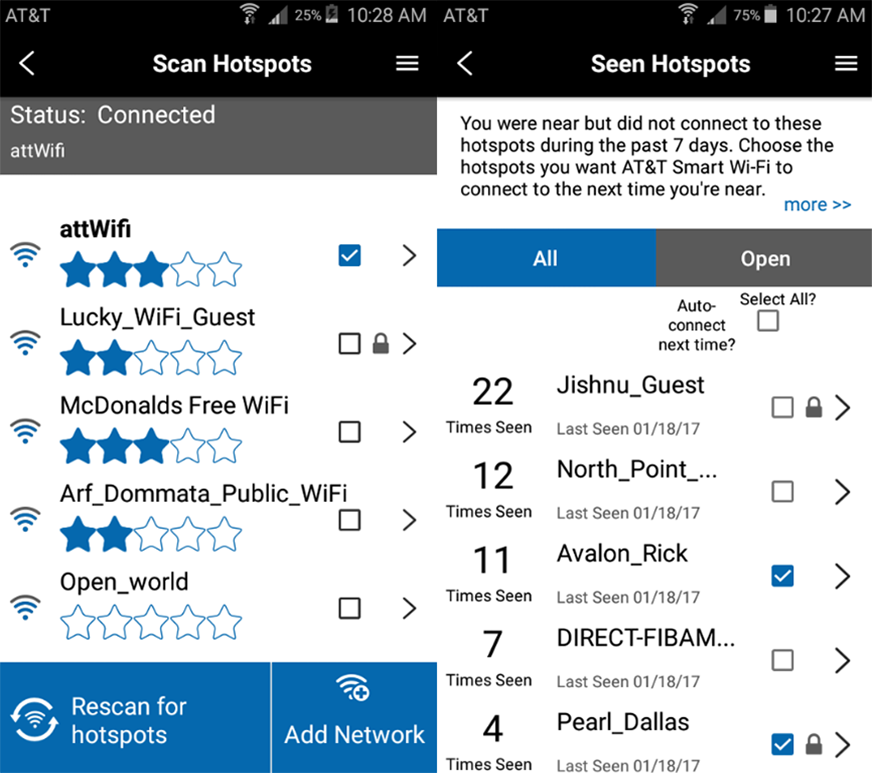
AT&T Smart Wi-Fi was an app that helped users find and connect to public wireless hotspots owned and managed by AT&T. But it is now officially retired, along with several other older apps (like the AT&T AllAccess app). AT&T Smart Home Manager is a newer, more powerful app that helps users manage their home Wi-Fi connections, including device management, parental controls, and network maintenance.
Here’s what to know about these two apps and why in nearly every situation, Smart Home Manager is the app to use today.
Key Takeaways: AT&T Wi-Fi Apps
- AT&T Smart Wi-Fi was an older Android app that has been retired.
- AT&T has only one current Wi-Fi app: Smart Home Manager.
- Smart Home Manager is available on iOS and Android.
- You can use Smart Home Manager to manage many aspects of your home Wi-Fi network, including troubleshooting and controlling access.
- If you’re trying to manage your home Wi-Fi, you’re looking for Smart Home Manager, not AT&T Smart Wi-Fi.
- Remember to be careful on public Wi-Fi networks, even ones that look like they are controlled by AT&T.
- Use Smart Home Manager to manage your AT&T home Wi-Fi; Smart Wi-Fi was an older Android app for auto-connecting to AT&T hotspots and has been discontinued.
What AT&T Smart Wi-Fi Used to Do
This defunct app helped AT&T Wireless customers with Android devices automatically find and connect to AT&T Wi-Fi hotspots when they were out in public. AT&T maintains a network of public Wi-Fi hotspots in places like airports, restaurants, and coffee shops. When the idea of public Wi-Fi was less well-known, this app helped people connect without needing technical know-how.
This app is now retired; you cannot download it on new devices, and if you still have it on an older device, the app may no longer function properly.
What Is AT&T Smart Home Manager?
Smart Home Manager is AT&T’s main app for its home internet customers. It works on both iPhone and Android and serves as the main way to control your home Wi-Fi. Think of it like a remote control for your home Wi-Fi router and internet gateway.
What Can I Do in AT&T Smart Home Manager?
AT&T Smart Home Manager helps you handle all sorts of details on your home network, like checking who’s connected, kicking off unknown devices, and implementing time limits or parental controls. Here’s a full breakdown:
- See who’s connected: See every device (phones, laptops, tablets, smart TVs, etc.) and identify devices you don’t recognize.
- Remove and block unknown devices: Block a device you don’t trust so it can’t keep using your internet. Don’t worry, you can undo this if you accidentally block the wrong thing.
- Pause Wi-Fi: Create profiles for devices or people (such as Xbox or Kids), then pause Wi-Fi manually or on a schedule (like homework or bedtime).
- Set time limits and content filters: Limit screen time amounts for certain devices, and/or restrict adult content and other categories on kid profiles.
- Share or change your Wi-Fi password: Set a secure password you can remember, then share it automatically with friends and trusted devices.
- Find Wi-Fi weak spots: Because the app runs on Wi-Fi, it can identify weak spots and offer guidance on how to improve them.
- Run a speed test: Determine whether slow internet is coming from AT&T or just a slow device.
- Basic troubleshooting: Walk through DIY steps to fix common internet issues.
(Feature availability depends on your AT&T gateway and plan.)
Why This Matters Now
Top real-world questions received by internet companies like AT&T include “who’s on my Wi-Fi?” and “how do I pause the internet for my kid?”
So AT&T is responding to this kind of feedback by giving customers a way to answer those questions themselves — without calling tech support.
Which AT&T App Should You Use?
Smart Home Manager is the app to use for any and all home Wi-Fi needs. Smart Wi-Fi is no longer supported by AT&T. It may still exist on older Android devices, but features can stop working at any time.
AT&T steers new customers toward Smart Home Manager for home Wi-Fi control. You won’t find any mention of the retired AT&T Smart Wi-Fi app on AT&T’s site. Mobile users can simply connect to AT&T hotspots like they do other public Wi-Fi hotspots.
You Should Use Smart Home Manager If…
- You have AT&T home internet.
- You want to manage your home network (devices, names, passwords, parental controls).
- You’re trying to fix weak Wi-Fi in certain rooms.
- You need to pause Wi-Fi or set limits for certain devices or kids.
- You need to check speeds or connection status.
You Might Care About Smart Wi-Fi Only If…
- You have (or had) an AT&T Android phone with the app already installed.
- You specifically wanted automatic sign-in to AT&T public hotspots to save mobile data.
- You’re asking “Why did my phone used to auto-connect to ‘attwifi’ everywhere and now it doesn’t?”
Is It Safe to Use Public Wi-Fi and AT&T Hotspots?
Public Wi-Fi always carries some risk because you can’t be completely sure who controls a network or who might be using it improperly. Public connections are usually not well-protected, and some aren’t what they appear to be.
Why Public Wi-Fi Can Be Risky
Public Wi-Fi hotspots are risky because anyone nearby can jump on the same network. Depending on that network’s security settings (i.e. if it’s open, unsecured, and unencrypted), a knowledgeable hacker may be able to snoop on your internet traffic.
Worse, some “public connections” are malicious tools in disguise. Fake “free Wi-Fi” networks may look legit, but if you connect and attempt to log in, hackers will steal your credentials (and possibly your identity).
Smart Habits on Public Wi-Fi
If you use public Wi-Fi, follow these tips to stay safe:
- Stick to well-known, branded networks (like national restaurant and coffee shop chains or AT&T hotspots). These have a higher level of security than the unencrypted residential Wi-Fi at a small local coffeehouse
- Avoid logging in to banks, paying bills, or sending credit card info on totally open networks.
- Use a VPN or your phone’s hotspot if you need to send something sensitive.
- Turn off “auto-join” for public networks you don’t fully trust.
- Use strong, unique passwords for important accounts (banking, email, AT&T login) so one leak doesn’t unlock everything.
Where AT&T Hotspots Fit In
AT&T-branded hotspots (“attwifi,” “AT&T Wi-Fi,” etc.) are common in airports, restaurants, and public venues. The older AT&T Smart Wi-Fi app tried to auto-connect you to those and preferred more secure options when possible.
Today, you can still use these hotspots, and most AT&T devices will auto-connect when Wi-Fi is on, or you can join manually like any other public Wi-Fi. The safety rules above still apply.
How to Get Started With AT&T Smart Home Manager
If you’re an AT&T customer and you aren’t using Smart Home Manager yet, use these steps to get started.
Step 1: Download the App
- On your phone, open the App Store (iPhone) or Google Play (Android).
- Search for “AT&T Smart Home Manager.”
- Install it.
- Sign in with the same AT&T account you use to pay for your AT&T home internet. (You’ll need an AT&T-compatible gateway for all features.)
Step 2: View and Label Your Devices
- Open Smart Home Manager and go to Profiles & Devices (or Network → Connected Devices).
- You’ll see every phone, TV, tablet, and other devices that are on your Wi-Fi.
- Tap a device to rename it to something you recognize (“Sam’s Xbox,” “Living Room TV,” “Mom’s Work Laptop”). You can also assign it to a profile.
Pro tip: Clear naming now = easier device management later (pausing or blocking the right devices).
Step 3: Set up Parental / Downtime Controls
- In Smart Home Manager, go to Profiles & Devices and create a profile for each kid or group (for example, “Aiden” or “Game Room”).
- Add that child’s device(s) to that profile.
- Use Pause Internet to cut off Wi-Fi instantly or set a downtime schedule so those devices automatically go offline at homework time or bedtime.
Step 4: Fix Weak Wi-Fi Rooms
- In Smart Home Manager, look for Easily Find Weak Wi-Fi in Your Home (For You tab) or Do I need Smart Wi-Fi extenders? under Tools.
- Follow the prompts to test signal strength in the problem room. The app will flag “weak signal” or “poor coverage.”
- Do what it recommends: try moving your gateway or place an AT&T Wi-Fi extender or All-Fi Booster in that area to expand signal coverage.
Step 5: Change or Share Your Wi-Fi Password
- In Smart Home Manager, open My Wi-Fi.
- View or change your Wi-Fi network name and password. You can also tap Share Wi-Fi to send a QR code, text, or email so guests can join instantly.
You can also turn on or edit a Guest Wi-Fi network with its own name and password so visitors aren’t on the same network as your main devices. Note: Guest network controls depend on your specific AT&T gateway or All-Fi Hub and may be limited on some setups like Internet Air.
FAQ
Is the AT&T Smart Wi-Fi app still available?
No; it has been discontinued.
What app do I use now to manage my AT&T Wi-Fi network at home?
You should use AT&T Smart Home Manager instead.
Can I pause the internet for my kid with AT&T?
Yes, this is a feature available in the Smart Home Manager app (under Profiles & devices: Pause/Downtime).
How do I get rid of freeloaders on my Wi-Fi?
Smart Home Manager enables you to kick out and block any device you don’t recognize, stopping that device from using your Wi-Fi.
Is it safe to use AT&T public hotspots?
Generally, yes; but avoid sensitive and confidential work. See “Smart Habits on Public Wi-Fi” above.
Do I need to call AT&T to fix bad Wi-Fi in one room?
Not necessarily; use the Smart Home Manager app to troubleshoot. Moving your router may solve the problem.