
Key Takeaways
- Fiber-optic internet transmits data via light through hair-thin glass fibers.
- Even with fiber, internet speeds can be affected by external factors, including network congestion during peak hours, physical damage to exterior cables, and provider policies such as data caps or throttling.
- In-home performance is influenced by internal elements, including the quality and age of your router and modem, the strength of your Wi-Fi signal, and the limitations of older connected devices.
- To maximize speed, it is recommended to upgrade to modern, high-performance hardware that supports gigabit speeds and Wi-Fi 6 technology.
- Strategically position your router in a central, open location and use a wired Ethernet connection.
- Regular maintenance can prevent common speed issues.
What is Fiber-Optic Internet?
Fiber-optic internet is a broadband internet service that transmits data as pulses of light over cables comprised of thin glass fibers. Since it theoretically moves data at light speed, fiber internet can offer speeds up to 10 Gbps with very low latency.
How Fiber-Optic Cables Work
The core of a fiber-optic cable is a strand of glass or plastic optical fiber surrounded by a cladding layer. The cladding reflects light back into the core, ensuring the signal travels over long distances with minimal loss. An outer buffer protects the cable from physical and environmental damage.
The shift to fiber-optic internet is more than just a technical upgrade; it's a game-changer for individuals and businesses demanding superior speed, reliability, and quality.
What Are the Advantages of Fiber-Optic Internet?
Fiber-optic internet offers high speeds, especially over long distances, low latency, and stability. It is a cutting-edge technology that has paved the way for future internet connectivity and growth.
High-Speed Capabilities
Fiber-optic internet dramatically outpaces traditional broadband, offering speeds up to 1 Gbps in some markets. Fiber-optic connections are often 20 times faster than copper-based connections.
Reliability and Stability
Fiber-optic provides consistent, interference-free connectivity, something that commonly affects copper-based networks. Its immunity to electromagnetic interference ensures a stable connection, vital for both businesses and homes. Advances in fiber technology continue to add to fiber-optic speed and reliability.
Low Latency
Latency is minimal in fiber-optic connections. Low latency is crucial for real-time applications like competitive online gaming and in delay-free video conferencing.
Factors Affecting Fiber-Optic Internet Speeds
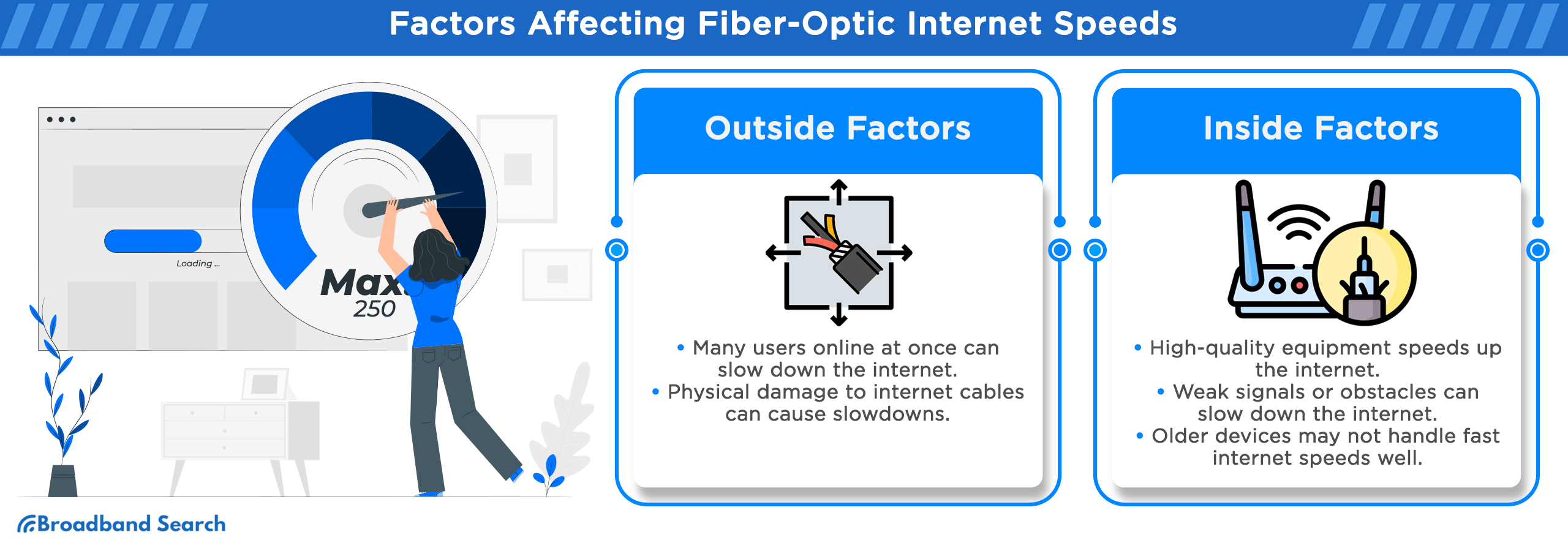
While fiber-optic internet offers exceptional performance, its actual speed can be influenced by several internal and external factors.
External Factors
Network Congestion
Internet usage surges during peak times (typically between 7 PM and 11 PM on weekdays), causing network congestion that will affect fiber performance.
ISPs manage congestion by prioritizing specific types of traffic or expanding bandwidth capacity. However, the measures may not entirely prevent a slowdown during extreme usage peaks.
Physical Damage to Cables
Fiber-optic cables are tough but not immune to physical damage. Construction work, accidental digging, or natural disasters such as earthquakes can snap cables, causing widespread outages.
The repair process can be complex and time-consuming, resulting in significant, often unpredictable downtime while ISPs work to restore services.
ISP Policies and Throttling
ISP policies, which include data caps and fair usage rules, can significantly affect your fiber-optic internet speeds by limiting data consumption. Understanding these policies is crucial.
ISPs may throttle during peak usage hours, intentionally slowing connections to manage network congestion, which can be frustrating for users seeking consistent, high-speed performance.
Internal Factors
While external factors are often beyond our control, variables within your home or office can affect your fiber connection.
Router and Modem Quality
New, high-quality modems and routers are designed to handle the speed and bandwidth of fiber internet. Aging equipment can be a significant bottleneck between your high-speed fiber and the rest of your devices.
Wi-Fi Signal Strength
To maximize your internet speed, place your router in a central, open location.
Signal strength weakens with distance and obstructions, which can create dead zones. Use Wi-Fi extenders or a mesh network to maintain a strong, consistent signal throughout your space.
Device Limitations
Older computers, smartphones, or tablets may not be designed to handle the capacity of fiber.
Upgrading to newer devices with better network capabilities can make a significant difference in your overall internet experience, ensuring your hardware is not the bottleneck in your setup and allowing you to enjoy the benefits of fiber-optic speeds fully.
How To Get The Most Out of Fiber Internet
Switching to fiber-optic internet is the first step toward superior connectivity, but you’ll need compatible equipment to maximize its performance.
Upgrading Hardware
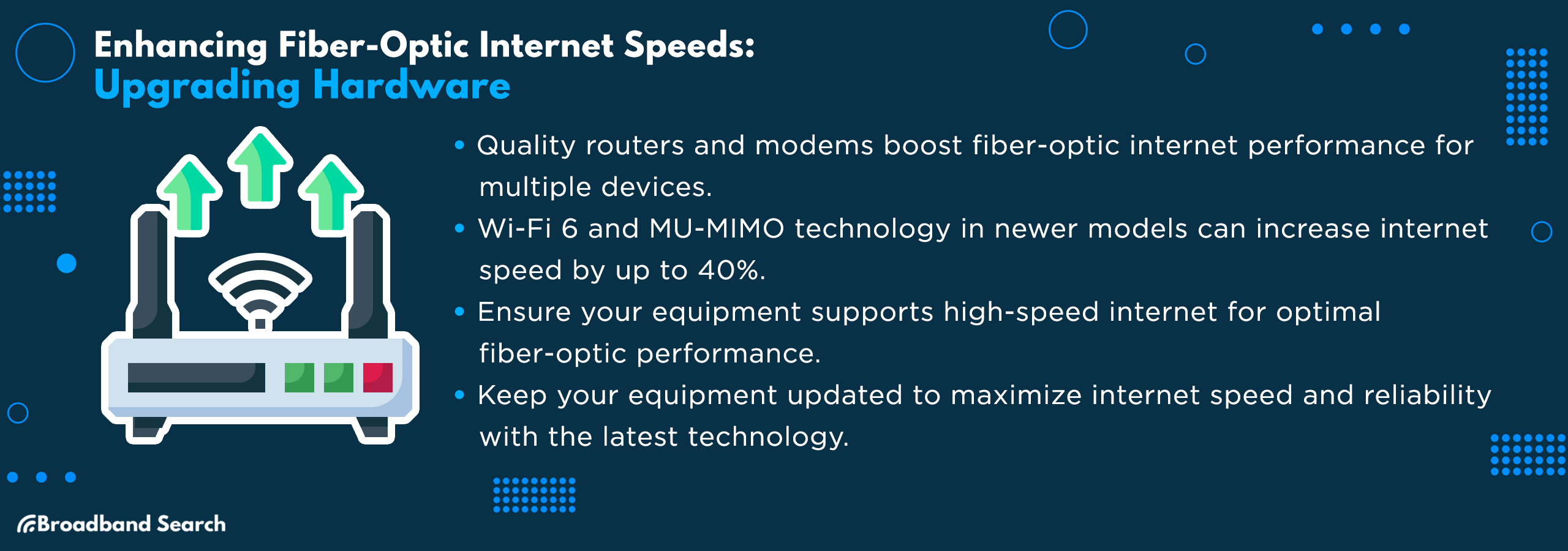
Optimizing fiber-optic internet starts with selecting the proper hardware. Your choice of router and modem can significantly influence internet performance.
Selecting High-Performance Routers and Modems
- Criteria for Choosing: Modern specifications, such as Wi-Fi 6, offer improved efficiency and speed. Consider frequency bands for broader coverage and Multi-User, Multiple Input, Multiple Output (MU-MIMO) technology for simultaneous device support. Devices with these specifications can boost speed by up to 40%.
- Compatibility with Fiber-Optic Speeds: Devices should support gigabit speeds with plenty of Ethernet ports so that wired devices have access to your connection’s top speed.
Importance of Regular Hardware Updates
- Advancements in Technology: Newer models of routers and modems offer a broader range of features and enhanced security. Modern devices support faster data processing and routing technology to support your home network.
- Lifecycle of Networking Equipment: Routers and modems typically have lifespans of 3 to 4 years. Signs that it's time for an upgrade include frequent disconnections, slow speeds, and an inability to support multiple devices.
Optimizing Wi-Fi Network
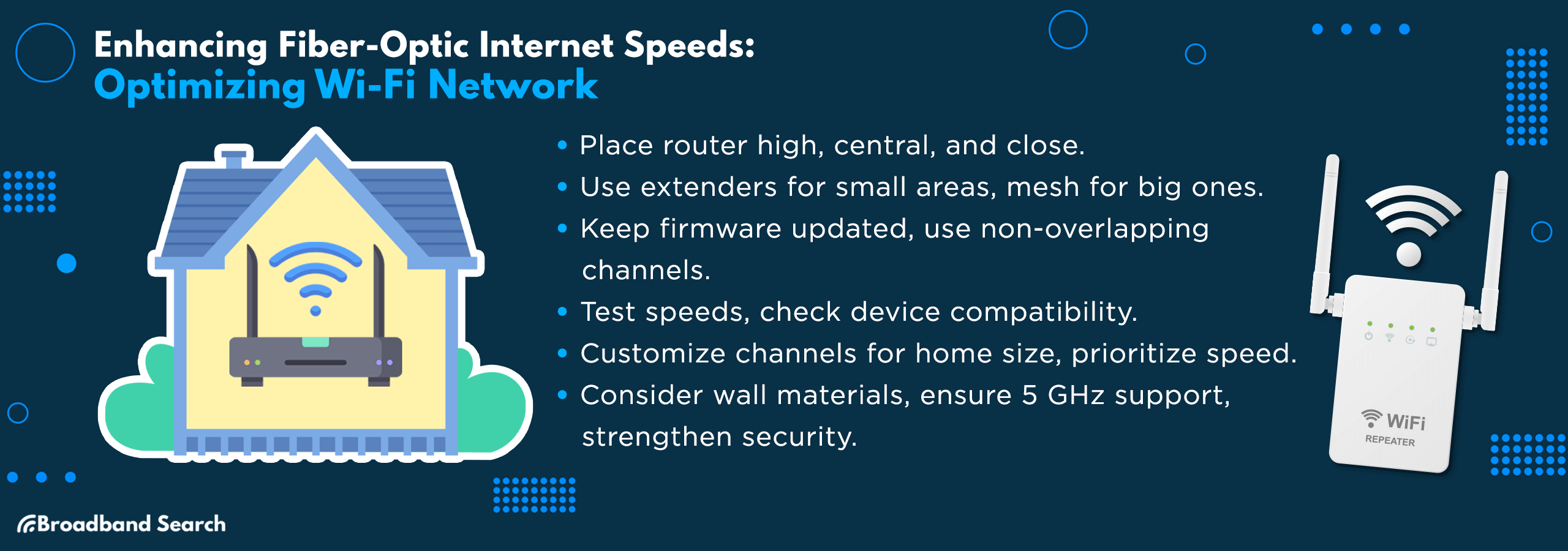
Managing your Wi-Fi network can significantly improve the speed, reliability, and coverage of your wireless internet connection throughout your home or office.
Router Placement
Maximizing your Wi-Fi network starts with optimal router placement, which can boost both signal strength and overall network performance. Place the router:
- On the highest floor of your home
- In a central location
- Close to primary and high-demand devices
Wi-Fi Extenders and Mesh Networks
Dead spots are common in large homes. Wi-Fi extenders help distribute the signal throughout the home, while mesh systems create a seamless Wi-Fi network over a larger space.
- Position extenders roughly halfway between your main router and the identified Wi-Fi dead zones. Mesh nodes should be distributed evenly throughout the home to ensure complete coverage.
- Use non-overlapping channels in your router settings to minimize signal interference from neighboring networks.
- Keep all router and extender firmware up to date to benefit from the latest security patches and performance enhancements.
- After installation and configuration, test the internet speeds in different areas of your space to ensure adequate coverage and make any necessary adjustments.
- Verify that all your networking devices are compatible with the high gigabit speeds provided by your fiber-optic service to avoid creating a bandwidth bottleneck.
Changing Wi-Fi Channels and Frequencies
Wi-Fi routers can broadcast different channels and frequencies, and they can get congested by other networks and devices in your home (cordless phones). Sometimes simply changing Wi-Fi channels and frequencies can free up a poor connection.
- Customize your network configuration based on your home's physical size, the number of connected devices, and your specific usage needs.
- In a home office, ensure your settings prioritize stable speeds and multi-devices to support professional tasks and video conferencing.
- The 5 GHz frequency band offers higher speeds and less interference, but shorter range. The 2.4 GHz band provides a wider, more balanced coverage suitable for general use across a larger area.
- Concrete walls, metal, electrical panels and junction boxes can all degrade your Wi-Fi signal. Plan your router, extender and mesh node placement with these materials in mind.
- Confirm that all your primary devices support the 5 GHz band to fully leverage modern fiber speeds, and upgrade older devices as needed.
- As part of overall network security, ensure you use strong encryption, enable your router's firewall, and apply regular updates.
Software Solutions
Optimizing your fiber connection through software solutions involves fine-tuning operating system settings, managing background applications, and using specialized tools to ensure your network reaches its full potential.
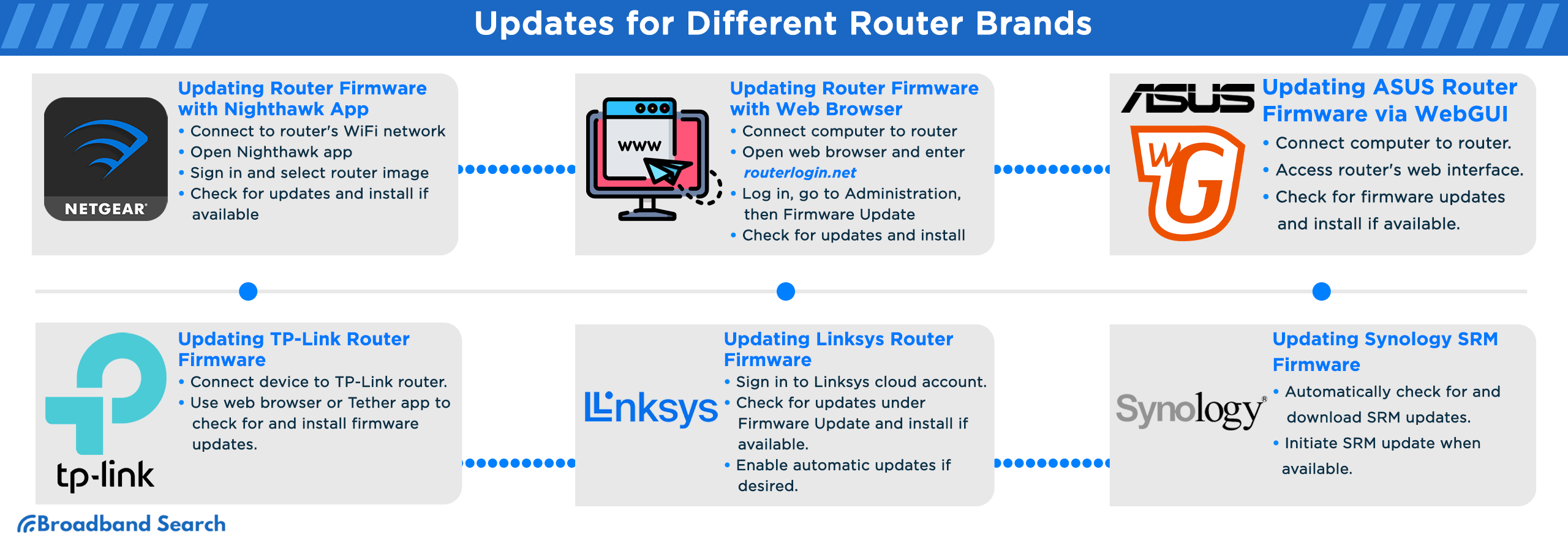
Router Firmware Updates
Firmware updates help maintain device efficiency and security. Regularly updating firmware ensures devices stay compatible with new technologies, safeguard against vulnerabilities, and perform optimally. Most modern routers let you update firmware either through a mobile app or a web browser.
The following are general steps to update firmware on a router. Check your device’s manual or manufacturer’s website for instructions that are specific to your router.
Updating firmware using a mobile app
- Connect to your Wi-Fi network.
- Make sure your smartphone or tablet is connected to the router’s Wi-Fi network you want to update.
- Open the router’s app. Launch the official app for your router or gateway and sign in with your admin or account credentials, if prompted.
- Go to settings or system menu. Look for a menu labeled something like Settings, System, Administration, or Router Settings.
- Find the firmware or update section. Tap options such as Firmware Update, Software Update, or Router Update.
- Check for updates. Use the Check for updates button or similar option. If new firmware is available, the app will usually show the version and a short description.
- Install the update. Start the update and leave the router powered on. The router will typically reboot during this process, and Wi-Fi will briefly go offline.
- Reconnect and verify. Once the router finishes rebooting, reconnect to Wi-Fi and, if available in the app, confirm that the firmware version shows as up to date.
Updating firmware using a web browser
- Connect directly to the router. Use Wi-Fi or, ideally, a wired Ethernet connection from your computer to the router or gateway.
- Open the router’s login page. In a web browser, type your router’s address into the address bar (commonly a local IP like 192.168.x.x or a router URL printed on the device label).
- Sign in with admin credentials. Enter the router’s admin username and password. If you haven’t changed them, they may still be set to the defaults listed on the router or in its documentation.
- Navigate to the firmware or update page. Look for sections named Administration, System, Maintenance, or Advanced, then find an option like Firmware, Software, or Update.
- Check for updates. Use the built-in Check for updates button if available. Some routers will also let you upload a firmware file you’ve downloaded from the manufacturer’s website.
- Run the update. Start the update and avoid unplugging or rebooting the router while the process is running. The router will usually restart automatically once the update is completed.
- Confirm everything is working. After the router comes back online, log in again to confirm the firmware version, then test your internet connection on a few devices.
Network Security
Ignoring security vulnerabilities can invite unwanted traffic and malware onto your network, directly compromising your connection and dragging down performance.
- Strong Passwords: Use complex passwords combining letters, numbers, and symbols. Tools like LastPass can generate and securely store them. Example: Instead of 'password123', use 'Pa$5w0rD!2024#'.
- Regular Password Changes: Change passwords periodically, at least every three months.
- Enable WPA3: Upgrade your router to WPA3 for enhanced encryption. It's the latest security protocol for Wi-Fi networks.
- Use VPNs: VPNs encrypt your internet connection, protecting your data from interception and misuse.
- Educate Users: Regularly inform network users about security best practices and potential threats.
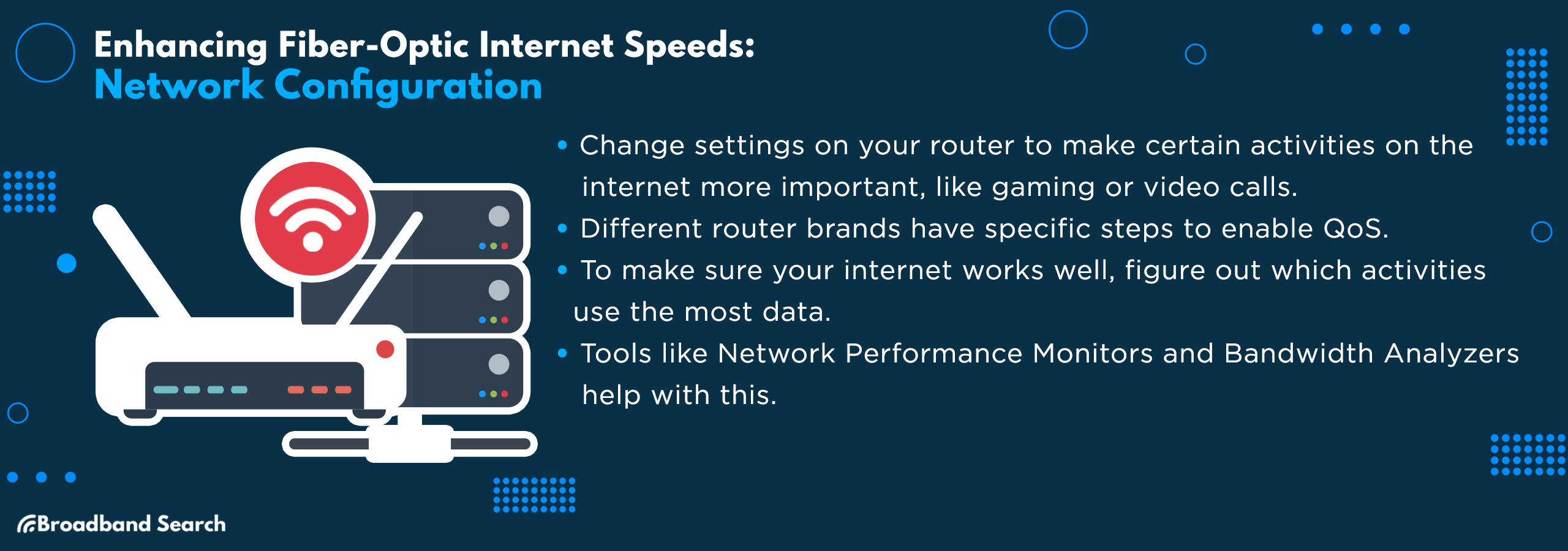
Network Configuration
Optimizing your network configuration involves fine-tuning software settings in your operating system and router interface to prioritize bandwidth, minimize latency, and maximize data throughput from your fiber-optic connection.
Quality of Service (QoS) Settings
Adjusting QoS settings on your router can transform your online experience. It's about prioritizing certain types of network traffic, such as gaming, video conferencing, and streaming services.
General steps to configure QoS
Refer to your router’s manual or manufacturer’s website for specific instructions.
1. Connect to your router. Use Wi-Fi or, preferably, a wired Ethernet connection from your computer to your router or gateway.
2. Open the router’s management page. In a web browser, enter your router’s local address in the address bar (often a local IP or router URL printed on the device label).
3. Sign in with admin credentials. Log in using your router’s admin username and password. If you haven’t changed them, they may still be set to the defaults listed on the router or in its documentation.
4. Find the QoS or traffic management section. Navigate through menus such as Advanced, Traffic Management, Bandwidth Control, or QoS until you find options related to Quality of Service or traffic priority.
5. Enable QoS. Turn QoS on using the available toggle or checkbox. Some routers may ask you to enter your current upload and download speeds—run a quick speed test and enter those values if prompted.
6. Set priorities for devices or activities. Use the options provided to:
- Prioritize specific devices (like your work laptop or gaming console), and/or
- Prioritize types of traffic (such as video conferencing, streaming, or online gaming) over less urgent activities like large downloads or background updates.
7. Save and apply changes. Save your settings and allow the router to apply them. Some routers may briefly restart when QoS changes are applied.
8. Test your connection under load. While streaming, gaming, or in a video call, run a quick speed or quality test to see if performance has improved. Adjust QoS rules as needed based on your real-world experience.
Managing Network Traffic
When your fiber connection feels slow, the first step is figuring out which devices or apps are using the most bandwidth. Once you know what’s eating up your speed, it’s much easier to fix.
Simple ways to see what’s using your bandwidth
- Check your router or ISP app
Many modern routers and internet providers offer an app or web dashboard that shows:
- Which devices are connected
- How much bandwidth each device is using
Look for sections labeled Device List, Connected Devices, or Traffic Usage.
- Look at data usage on your devices
On laptops, phones, and tablets, you can usually see which apps are using the most data:
- On computers: check built-in tools like Task Manager or Activity Monitor, or network and data usage settings.
- On phones and tablets: look in Data usage or Network settings to see which apps are running in the background.
- Watch for common bandwidth hogs
Some activities naturally use a lot of bandwidth:
- 4K or multiple HD streams
- Cloud backups and large file uploads
- Online gaming and video calls
If several of these are happening at once, everyone’s speeds can slow down.
Easy ways to reduce congestion
- Pause or schedule large downloads and backups for overnight or off-peak hours.
- Lower streaming quality (for example, from 4K to HD) when others are working or gaming.
- Limit background apps that constantly sync or upload files.
- Use Ethernet for high-priority devices like a work PC or gaming console to keep their connection stable.
For advanced home offices or small business networks, specialized network monitoring software can provide deeper insight into traffic across many devices—but most households won’t need more than the built-in tools from their router, ISP, and devices.
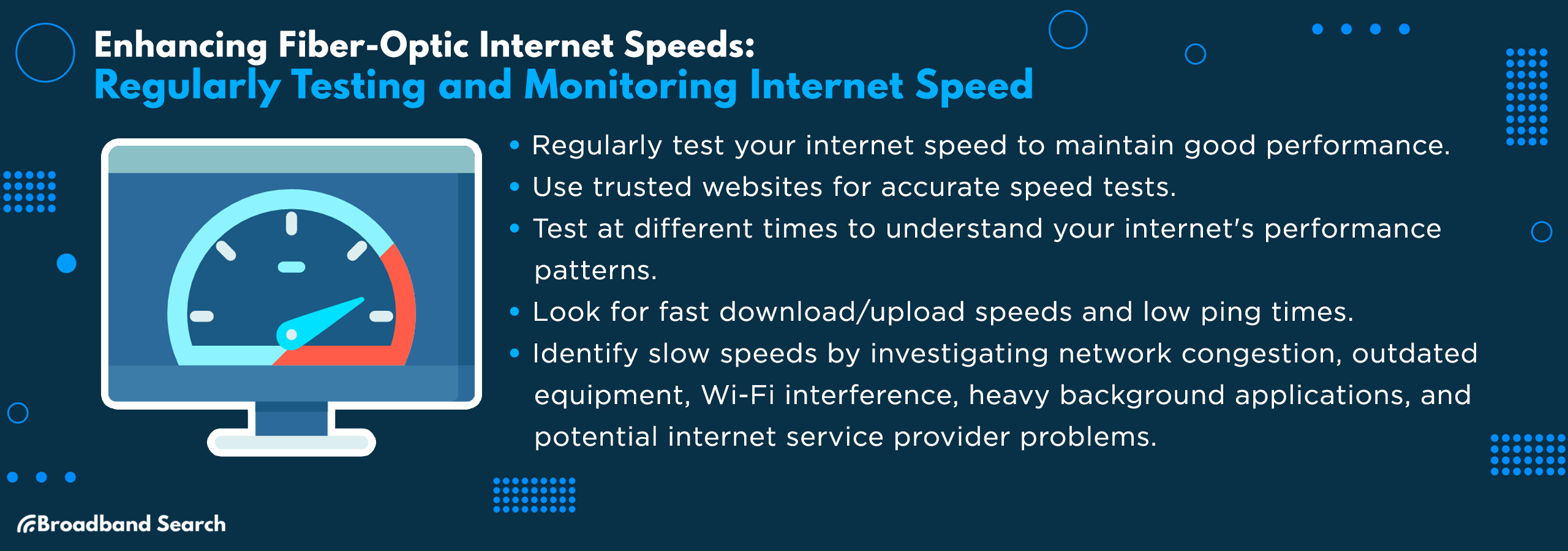
Regularly Testing and Monitoring Internet Speed
Regularly testing and monitoring your internet speed is a proactive way to diagnose performance issues, confirm you are receiving the service you pay for, and maintain an optimized fiber-optic connection.
Conducting Speed Tests
Regularly assessing your internet speed is a smart way to maintain optimal online performance.
- Use Authoritative Speed Tests: Visit TestMySpeed.com for accurate speed testing.
- Test at Various Times: For accuracy, test at different times, including peak hours (evenings and weekends) and off-peak times. This comparison provides a clearer picture of your internet performance.
- Understand the Metrics: Speed tests typically measure download and upload speeds in Mbps and ping in milliseconds. High download/upload speeds, along with low ping, are desirable for smooth online activity.
- Monitor Routinely: Test speeds monthly or whenever you notice a dip in internet performance. This habit helps you track your internet's health over time.
Identifying and Addressing Speed Issues
Identifying and addressing fiber-optic speed issues requires troubleshooting potential bottlenecks, including physical hardware limitations and network configuration issues.
- Network Congestion: If speed tests show significant drops during peak evening hours, contact your ISP to discuss solutions or a potential plan upgrade.
- Outdated Hardware: Alleviate bottlenecks by upgrading to newer, more capable modems or routers that support modern fiber speeds.
- Wi-Fi Interference: Improve signal strength by moving your router to a more central location or using a reliable wired Ethernet connection for stationary devices.
- Background Applications: Check that no unintended downloads or streaming services are consuming significant bandwidth during speed tests or regular usage.
- ISP Issues: For consistently low speeds, review ISP performance reports and customer reviews in your area to determine if others are experiencing similar problems.
Troubleshooting Common Issues
Troubleshooting common issues involves systematically diagnosing potential bottlenecks and interferences that prevent your fiber-optic connection from performing at its peak.
Identifying and Resolving Connectivity Problems
Experiencing issues with your fiber-optic internet connection can be frustrating, but many common problems have straightforward solutions that you can often manage yourself.
Preliminary Checks
Start by checking basic ONT (optical network terminal) functionality for initial troubleshooting.
- Ensure the ONT's power cable is securely connected and undamaged and verify outlet functionality with another device.
- Identify physical damage signs on the ONT:
- Inspect for visible cracks or breaks in the casing.
- Search for evidence of overheating or electrical burn marks.
- Check for loose or rattling internal components.
- Examine connectors and ports for rust or corrosion.
- Look for water ingress or moisture-related damage.
Reset ONT
Resetting the ONT often fixes connectivity issues by refreshing its systems.
How to Perform a Soft Reset
A soft reset often resolves minor glitches without changing settings.
- Find the ONT's reset button.
- Hold the reset button for 10 seconds.
- Release and wait for the ONT reboot.
- Confirm if the problem is fixed.
How to Perform Hard Reset (Factory Reset)
Perform a hard reset on the ONT by pressing and holding the reset button for 30 seconds to restore factory settings.
When to Contact Your Service Provider
Knowing when to contact your service provider and using a direct link to their contact information can save you significant time and frustration.
Complicated Hardware Problems
At times, complex ONT issues demand professional expertise, not DIY solutions.
- When multiple components fail concurrently, seek professional diagnosis for troubleshooting.
- Complex ONT software glitches demand specialized expertise beyond basic fixes.
- Frequent signal loss suggests potential hardware or network complications.
- After power surges, expert evaluation is crucial if your ONT malfunctions.
- Installation mistakes can lead to persistent issues that require professional correction.
Preparing for a Service Call
- Ensure clarity and conciseness by detailing the issue and error messages.
- Keep account and service details ready for quick reference.
- Maintain patience and clarity in your communication for effective issue resolution.
- Document the troubleshooting steps you've completed.
- If initial support falls short, request higher-level assistance or escalation.
Getting the Most Out of Fiber-Optic Internet
Navigating the high-speed lanes of fiber-optic internet requires a mix of hardware optimization, ongoing software tuning, and staying up to date with emerging technologies.
By regularly monitoring performance, upgrading your equipment, and staying informed about best practices and new technology, you ensure your setup is future-ready. The future is fast, and so should be your internet!
FAQ
What is the typical lifespan of fiber-optic cables compared to traditional copper cables?
Fiber-optic cables have a significantly longer lifespan than traditional copper cables, typically lasting over 25 years.
Can fiber-optic internet be affected by weather conditions, such as storms or extreme temperatures?
Unlike copper cables, fiber-optic internet is far less prone to weather-related disruptions. The use of light pulses for data transmission minimizes the impact of storms or extreme temperatures, maintaining a consistent, reliable connection.
Are there any health risks associated with fiber-optic internet?
Health risks associated with standard, properly installed fiber-optic internet are considered negligible. Because fiber-optic cables transmit light through glass strands and do not emit electromagnetic fields related to copper or wireless transmissions, they do not pose known health concerns.
Can fiber-optic cables be recycled or reused?
Fiber-optic cables are recyclable and can be repurposed. The glass and plastic components can be recovered and reused, aligning with environmental sustainability efforts. Many waste management facilities or specialized recycling programs accept electronic and networking components.
How does fiber-optic internet affect the value of real estate?
Properties equipped with fiber-optic internet often see an increase in real estate value. High-speed, reliable internet is a highly desirable feature for both homeowners and businesses, significantly enhancing a property's attractiveness and market value in a digitally connected world.