

You're in the middle of a video call when there’s an awkward delay between when you speak and when others hear you. Or maybe you're gaming onlineand your character suddenly snaps backward like someone hit rewind. Your internet speed test shows everything's fine, but your internet is sluggish. And really frustrating.
These are the classic signs of high internet latency. The good news is that you can usually fix it. But some types of internet have inherently high latency and no amount of tweaking and optimizing your network will make it better.
Below, we walk you through what latency is, how to spot when yours is too high, and what you can do about it. We'll also cover specific tips for gamers who need every millisecond to count.
Key Takeaways About Internet Latency
- Latency is a measurement of responsiveness shown in milliseconds (ms). The lower the number, the better the latency.
- Latency is called lag, or ping, or delay.
- Good latency is about 50 ms or less for most online activities.
- Jitter and packet loss cause unstable internet. For video calls and gaming, aim for jitter under 30–40 ms and packet loss under 2%.
- If you can, use Ethernet instead of Wi-Fi for a more consistent connection.
- The easiest ways to improve latency: restart your modem and router, minimize the number of connections on your network, connect via Ethernet cable, pick the closest server in your games, and upgrade dated gear.
What Is Internet Latency?
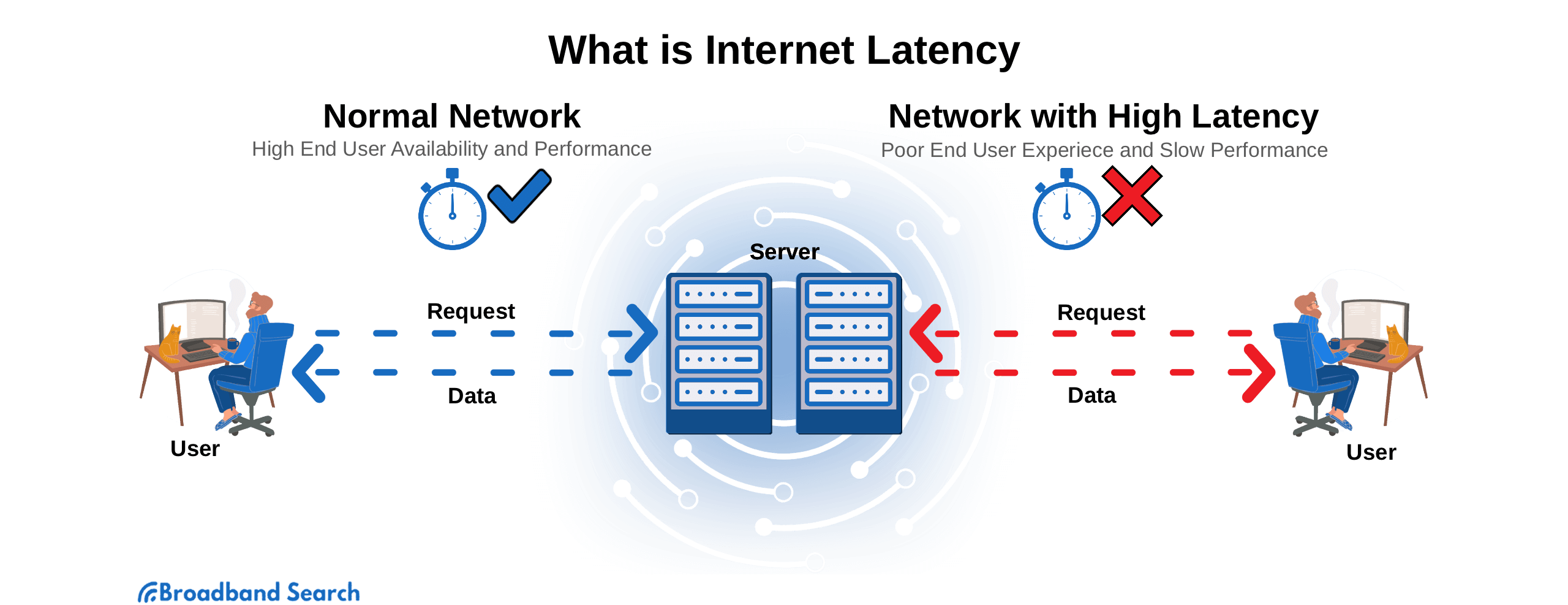
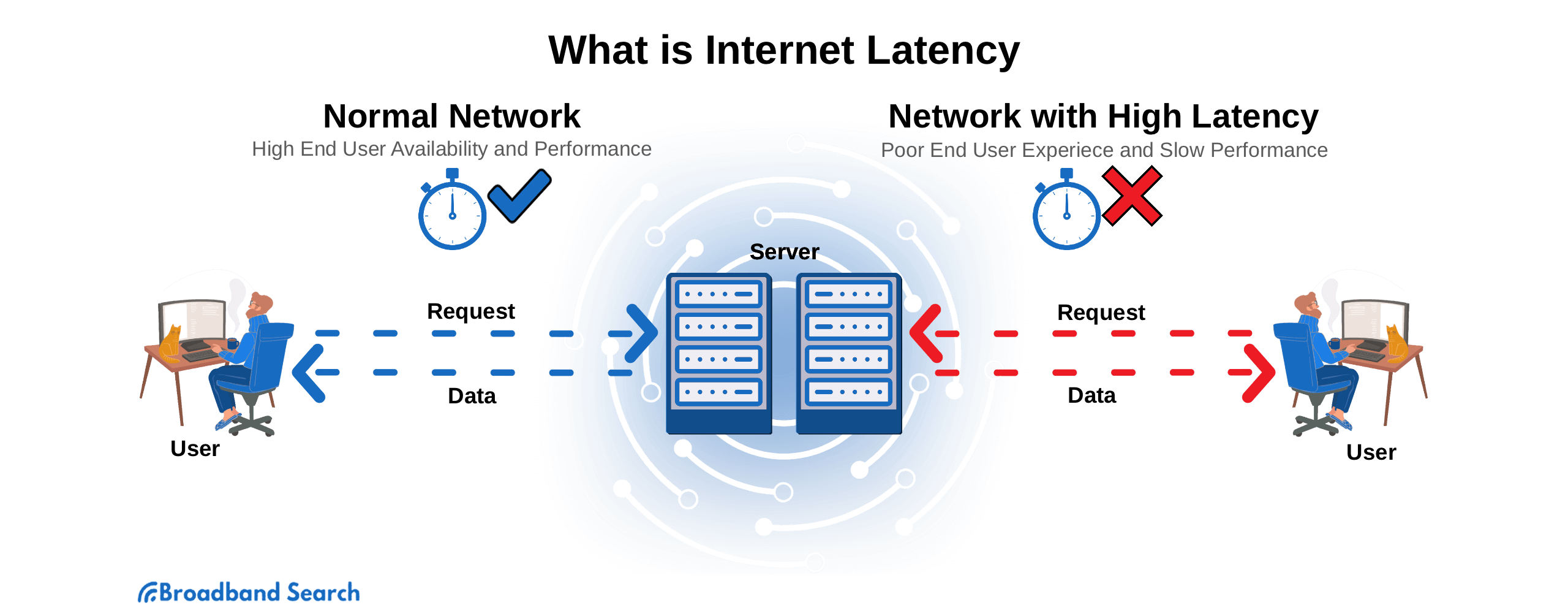
Internet latency is the time it takes data to travel from your device to a server on the internet or your provider’s network and back. If you notice a delay between the time you initiate an action, like firing your weapon in a game or clicking on a link, and the game or website responding to that action, then that’s a good indication that your latency is high.
Latency vs. Speed: What’s the Difference?
Internet speed (Mbps) is how much data your connection can carry at once. Latency (ms) is the delay before you get a response after you click, tap, or send something online.
Think of it like driving: speed is how many lanes the highway has, while latency is how long it takes a car to get from your house to the store and back. A wide highway (high speed) can still feel slow if there are lots of stoplights (high latency).
This is why you can have blazing fast download speeds but still experience lag:
- High-speed connections move large files quickly once they start, but if there's a delay before anything moves, you'll notice it.
- A video game with 500 Mbps download speed but 200 ms latency will feel sluggish because every action takes a fifth of a second to register. That may not seem like a lot, but it is, and it can ruin your match.
- Loading a webpage requires many small back-and-forth requests from your device to the server, so high latency creates delays even though your speed could handle the data volume without issue.
What Is a Good Internet Latency for Gaming, Calls, and Streaming?
There isn’t a single perfect number, other than to say that for gaming, video conferencing, and streaming 4K video, the lower your latency is, the better your experience will be; smooth, responsive gaming, no audio and video sync issues or talk over during a video call, and buffer-free, high definition video streaming.
Common Latency Targets
- Around 50 ms or less: a solid modern target for frustration-free internet use
- 100 ms: still usable, but delays become noticeable, especially in real-time apps
- 150 ms and above: lag tends to show up, as does your irritation, in most activities for most people
Latency Targets by Activity
ActivityGreatAcceptableProblematicCompetitive GamingUnder 20 ms20-50 msOver 75 msCasual GamingUnder 50 ms50-100 msOver 150 msVideo CallsUnder 50 ms50-100 msOver 200 msWeb BrowsingUnder 50 ms50-100 msOver 200 msStreaming VideoUnder 100 ms100-200 msOver 300 ms Typical Latency by Connection Type
Some types of internet services have very low latency, while others have very high latency.
- Fiber: about 5–25 ms
- Cable: about 20–50 ms
- DSL: about 50–100 ms
- Satellite (traditional): often over 500
Satellite internet latency is so high because it is challenged by physics and the distance the signal travels from your device, up to the satellite, down to the provider’s hub, and then all the way back. And fiber internet has physics on its side. Since data is transferred via light signals, it moves very fast (even over long distances) and is more immune to interference. Which explains why cable and DSL have higher latencies; data is moved as electric signals over copper cable, which is very susceptible to impedance and interference.
How Can You Tell If Your Internet Latency Is High?
High latency won’t trigger any error messages, but you will notice that your connection is sluggish and slow to respond. Files may upload or download quickly, but you’ll notice delayed reactions and more inconsistency.
Here are the most common signs:
Signs of High Latency (and What to Try First)
Rubber-banding or delayed actions: Your character moves erratically or long after you’ve given it a direction to move. This happens when the game server receives your movement commands late and has to correct your position.
Choppy video calls: People's mouths are out of sync with their words, or their video freezes while audio continues. This usually indicates a combination of high latency and packet loss.
Buffering during live moments: Pre-recorded streaming video can compensate for latency by preloading, but live streams, sports, or interactive content will buffer and stutter. This often points to inconsistent latency (jitter) rather than just high latency.
Slow page interactions even with good speed tests: You click a link and wait. You submit a form and nothing happens for a moment. Your speed test shows great download numbers but the internet feels sluggish. This is typical of high latency.
What Causes High Internet Latency?
High latency is usually caused by your type of internet, network congestion, your distance from the server, interference, weak Wi-Fi signal, or aging equipment. Here’s a closer look at how these affect your ping and how you might be able to resolve the issue.
You’re Too Far from the Server
The farther your data must travel, the longer it takes to return. That is why a server on another continent almost always feels worse than one in your region.
Fast fix: choose a closer server or region in your game or app settings.
Network Congestion
When lots of devices are active on your home network, or when your neighborhood is busy during peak times (usually during the evening), latency will spike.
Fast fix: pause large downloads, cloud backups, and device updates while you are gaming or on work calls.
Wi-Fi Interference and Weak Signal
Wi-Fi is convenient, but it is also vulnerable to interference from walls, distance, and competing signals.
Fast fix: Move your router to a central, open location on the highest level of your home or switching to Ethernet for critical devices.
Outdated Routers, Modems, or Device Issues
Older routers and modems can struggle with modern network demands and overload their functions.
Fast fix: Restart your modem and router (or gateway), update firmware, and replace devices that are more than five years old.
Your Internet Type Has Higher Baseline Latency
Even in a perfect setup, some connection types start at a higher latency baseline than others. Fiber and cable internet tend to perform best for responsiveness, while traditional satellite often has very high latency.
Fast fix: The only way to improve a type of internet that has inherent high latency is to change the type of internet you have. As far as rural internet options go, satellite might be your only. But if you have access to fiber internet, that’s the way to go for less lag.
Enter your ZIP code at BroadbandSearch to see what types of internet are available in your area and what options you have for better latency.
Which Games Benefit Most from Low-Latency Internet?
Not every game needs lightning-fast responsiveness. A turn-based game can be fine with modest latency. But real-time multiplayer games where split-second timing matters become almost unplayable with high ping.
Table: Game Types Most Sensitive to Latency
Game TypeWhy Latency MattersExamplesCompetitive shooters / battle royaleSplit-second shots and movement. Lag can feel like the game “skips.”Halo Infinite, Counter-Strike, Apex Legends, Call of DutySports and physics multiplayerYou need the ball, car, and players to stay in sync.Rocket LeagueMOBAsTiming windows matter and delayed reactions get punished.League of Legends, DOTA 2Fighting gamesInputs are timing-critical. Many modern fighters rely on strong netcode plus a stable connection.Guilty Gear StriveSocial party gamesVoice chat and smooth sessions matter, even if gameplay is simple.Among Us, Fall Guys “Better Internet for Gaming” Usually Means 3 Things
When gamers talk about better internet, they're actually referring to three different qualities. Speed matters for downloads and updates. But once you're in the game, speed barely matters unless you're streaming or downloading in the background. Here’s what matters for online gaming:
- Low latency and steady ping (responsiveness)
- Low jitter and low packet loss (stability)
- Enough speed for downloads and updates (convenience)
What Are Jitter and Packet Loss (and Why Do They Matter)?
Latency (ping) gets most of the attention, but jitter and packet loss are common culprits of making a connection feel unstable, especially on video calls and in online games.
What Is Jitter?
Jitter is the variation in delay. In other words, your ping is not steady. One moment it is 25 ms, then it jumps to 90 ms, then drops again. That’s jitter.
It can be more frustrating than a slightly higher ping, because real-time apps need a smooth flow of data for the best experience. Here’s how you can tell your connection is...jittery:
- Choppy or robotic audio
- Video that looks fine, then suddenly stutters
- “Rubber-banding” in games (your character snaps backward or forward)
- Random spikes that come and go
What Is Packet Loss?
Packet loss happens when some data never makes it to the destination. Those missing packets must be resent or “filled in,” which can cause stutters, video distortion, freezes, and drops. Common packet loss symptoms:
- Words cut out during calls
- Video freezing or dropping to very low quality
- Games hitching, teleporting, or disconnecting
- Websites that partially load or time out
Targets for Jitter and Packet Loss
For everyday browsing, you might not notice minor jitter or packet loss issues. But you sure will during the most important work call ever or the championship round in a game. Here are some recommendations of acceptable jitter and packet loss for popular video conferencing apps:
- Microsoft Teams
- Jitter: under 30 ms
- Packet loss: under 2%
- Round-trip time: under 200 ms Microsoft Support
- Zoom
- Jitter: 40 ms or less
- Packet loss: 2% or less
- (Zoom also notes latency of 150 ms or less is recommended) Zoom
Quick take: You will start to see call issues and gaming instability if your jitter is above 30–40 ms or packet loss is above 2%.
Checking Jitter and Packet Loss
You can find these metrics in a few places:
- During a call:
- Teams: open Call health to view jitter, packet loss, and round-trip time - Microsoft Support
- Zoom: view meeting statistics, including jitter and packet loss - Zoom
- During a game:
- Many games show ping and may show packet loss or network warnings in settings or HUD
- Pay attention to spikes, not just the average number
How to Fix Jitter and Packet Loss
You can correct for jitter and packet loss in the same way you can correct high latency. You can start with the fixes that solve the most problems for the least effort:
- Switch to Ethernet for your work computer or console (removes a lot of Wi-Fi instability)
- Restart your modem and router
- Pause heavy household traffic (cloud backups, large uploads, downloads, updates)
- Move closer to the router or reposition the router (central, elevated, less blocked)
- Check cables and connections (loose coax, damaged Ethernet, aging splitters)
- Update router firmware and consider replacing very old equipment
- If it happens at the same time every day: it may be congestion or an ISP line issue. Contact your internet provider with your test results
How Do You Test Ping, Jitter, and Packet Loss?
The quickest way to test your ping, jitter, and packet loss is to use an internet speed test tool like TestMySpeed. Many video conferencing apps and games have test tools embedded, or heads up displays that show your rates.
The Fast Way: Speed Test and In-Game Ping
- Run an internet speed test and look for ping (latency).
- If you game, check your in-game ping and whether it spikes during busy household hours.
The More Helpful Way: Test Consistency
If your ping looks fine but you still feel lag, the issue might be spikes or instability.
- Test while nothing else is happening on your network
- Test again during peak use in the evening
- If the number jumps wildly, you are dealing with an instability problem, not just “average” latency
The More Accurate Way to Test (Ping and Traceroute)
For a deeper look, use the ping command built into Windows and Mac.
- On Windows, open Command Prompt and type ping google.com (or any website).
- On Mac, open the Terminal and use the same command.
You'll see response times for multiple packets, which reveals whether latency is stable or spiking.
Traceroute shows every hop your data takes to reach a destination.
- Type tracert google.com on Windows
- Type traceroute google.com on Mac.
Each line represents a router along the path, with three ping times. If you see sudden jumps at a specific hop, that's where the problem lives. Numbers that say "Request timed out" or show asterisks indicate a point where packets are getting delayed or lost.
For Video Calls: Use Platform Metrics When Available
Microsoft Teams displays network statistics during calls. Click on your profile picture, go to Settings, then Call Health. You'll see real-time metrics for round-trip time (which should stay under 200 ms), jitter (keep it under 30 ms), and packet loss (aim for under 2%).
Zoom offers similar information. During a call, click the shield icon or go to Settings and Statistics. Zoom recommends keeping jitter at or below 40 ms for good quality. If your metrics consistently exceed these thresholds, your connection is causing call problems regardless of what your download speed looks like.
How Can You Reduce High Internet Latency at Home?
The easiest ways to reduce latency at home is to restart your modem and router (or gateway) and limit the number of connections on your network. Below are a number of tips to improve ping, jitter, and latency. Start with the easiest fixes first. Most people see improvement without buying anything.
Quick Wins
- Restart modem and router (unplug, wait 30 seconds, plug back in)
- Switch your gaming PC or work laptop to Ethernet
- Pause cloud backups, big downloads, and automatic updates
- Change your server region to one closer to your location
- Turn off VPN temporarily and compare ping (some VPN routes add delay)
Wi-Fi Fixes That Often Help
If you cannot use an Ethernet cable, you can still make Wi-Fi more stable.
- Move your router to a central, open location
- Reduce interference (distance from microwaves, thick walls, and crowded areas)
- Use 5 GHz when you're close to the router; 2.4 GHz when you’re further from it
- Consider a mesh system if your home has dead zones
Router Settings That Can Reduce Lag Spikes
These vary by router, but they can help. You’ll need to log into your router for a couple of these steps. Check your model’s manual or the manufacturer’s website for instructions.
- Enable Quality of Service (QoS) or device prioritization for gaming and calls
- Update router firmware
- Replace an outdated router if you cannot maintain stable performance
When It’s Time to Contact Your ISP (Or Switch)
Reach out to your ISP if:
- Your latency is consistently high even on Ethernet
- You see frequent packet loss or disconnects
- It gets dramatically worse every evening, even after you troubleshoot at home
Sometimes the issue is upstream congestion, line quality, or aging infrastructure. In those cases, your ISP may need to fix the line, swap equipment, or suggest a better plan.
Make Your Connection Feel Instant Again
High internet latency is one of those problems that makes everything online feel a little worse. The good news is that you can usually narrow it down quickly.
Start by checking ping, then look for stability. If the number spikes, focus on Wi-Fi interference, congestion, and server distance. If the number is always high, your connection type or ISP routing may be the bigger issue.
Action step: run a quick ping test, switch one key device to Ethernet, and repeat the test. If you see a big improvement, you have found your next best fix.
FAQ
What is considered high latency?
Latency above 100 ms is generally considered high for most activities. Gaming becomes difficult above 75 ms, while video calls start to break down around 200 ms.
Can high latency be fixed?
Yes, most of the time. Solutions range from simple (switching to Ethernet, restarting equipment) to more involved (changing router settings, upgrading your router or changing ISPs). The fix depends on what's causing your high latency.
Does faster internet speed reduce latency?
Not necessarily. Internet speed and latency are different metrics. You can have a fast 500 Mbps connection with high latency, or a slower 50 Mbps connection with excellent low latency. Upgrading speed helps with downloads but doesn't automatically improve ping.
Why is my ping high only at certain times?
This usually indicates network congestion either in your home or with your ISP. Peak evening hours when many people stream video can increase latency. Check if other devices on your network are using bandwidth during those times.
Is 20 ms latency good?
Yes, 20 ms is excellent latency, especially for video conferencing and competitive online gaming.
What causes latency spikes?
Common causes include Wi-Fi interference, too many devices using your network, background updates downloading, poor router performance, or temporary issues with your ISP's network.
Is Ethernet really better than Wi-Fi for latency?
Most of the time it is, especially for consistency. It is the most direct way to connect to your internet provider’s network and, while connected, you’ll see the best speeds, lowest latency, the least jitter, and limited packet loss.
What’s the difference between latency, jitter, and packet loss?
- Latency: delay, lag, or ping measured in ms
- Jitter: variation in delay (spikes)
- Packet loss: missing data, often heard as audio dropouts or seen as stutters
Why do games like Call of Duty feel so sensitive to lag?
High latency is most noticeable in CoD because it requires fast reactions, frequent server updates, and tight timing windows to be successful in the game. It’s best to limit connections on your home network while playing real-time games like this.

